
Choose a plan and get started
Buy the plan for your event and access your host account.
Before you start
Have your email address ready. Plan features and prices are shown before payment.
Steps
Screenshots show the SnapAlbum web app with fictional demo data. Prices and dates are examples.
Open the plan selection page and compare Snap, Classic and Premium. Choose the plan that suits your celebration.
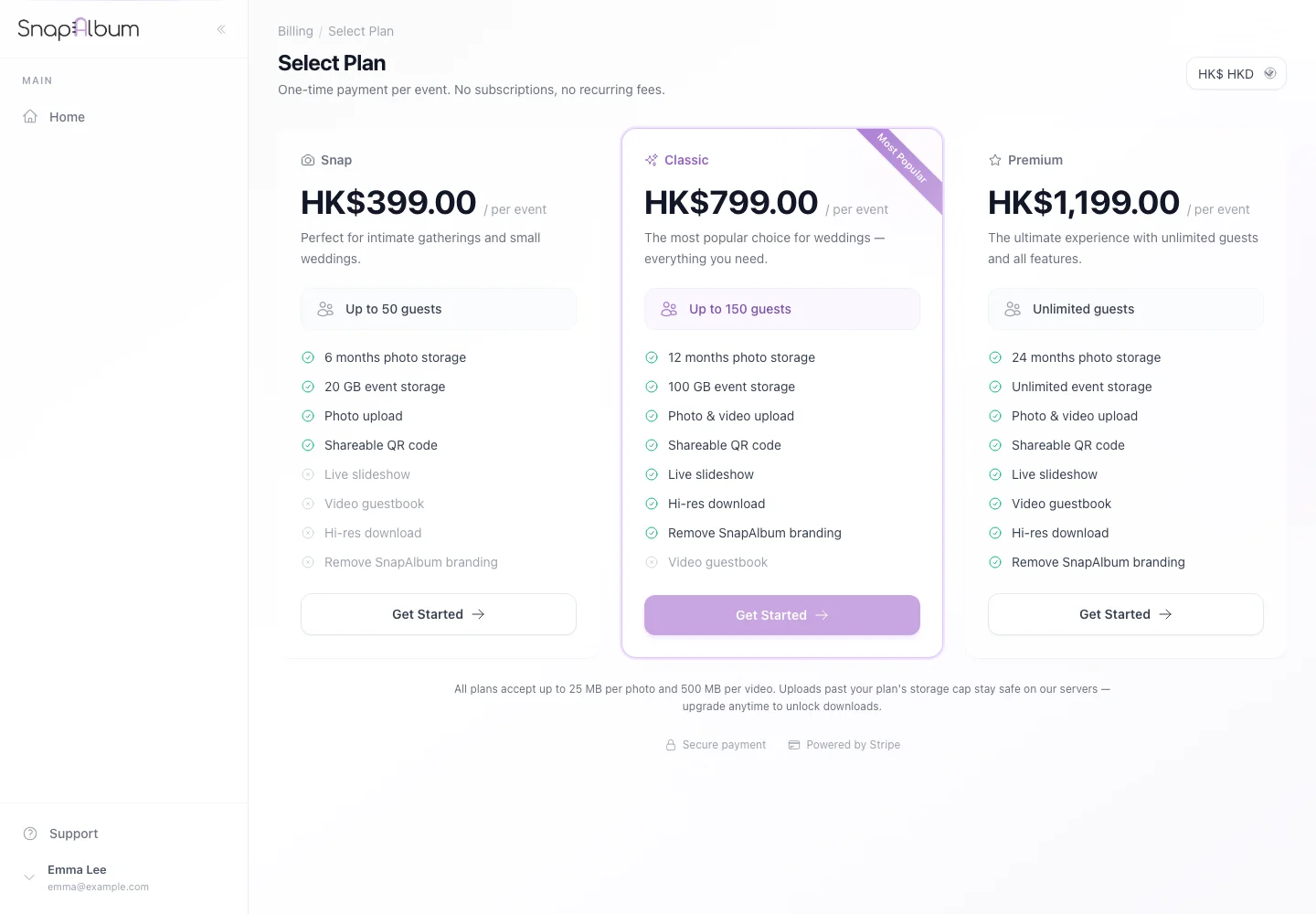
Open the plan selection page and compare Snap, Classic and Premium. Choose the plan that suits your celebration. Follow checkout to enter your account and payment details. Existing customers can sign in during checkout. Check the total before paying.
After payment, open your dashboard. Your purchased event is ready for setup; follow the activation prompt when you are ready to start.
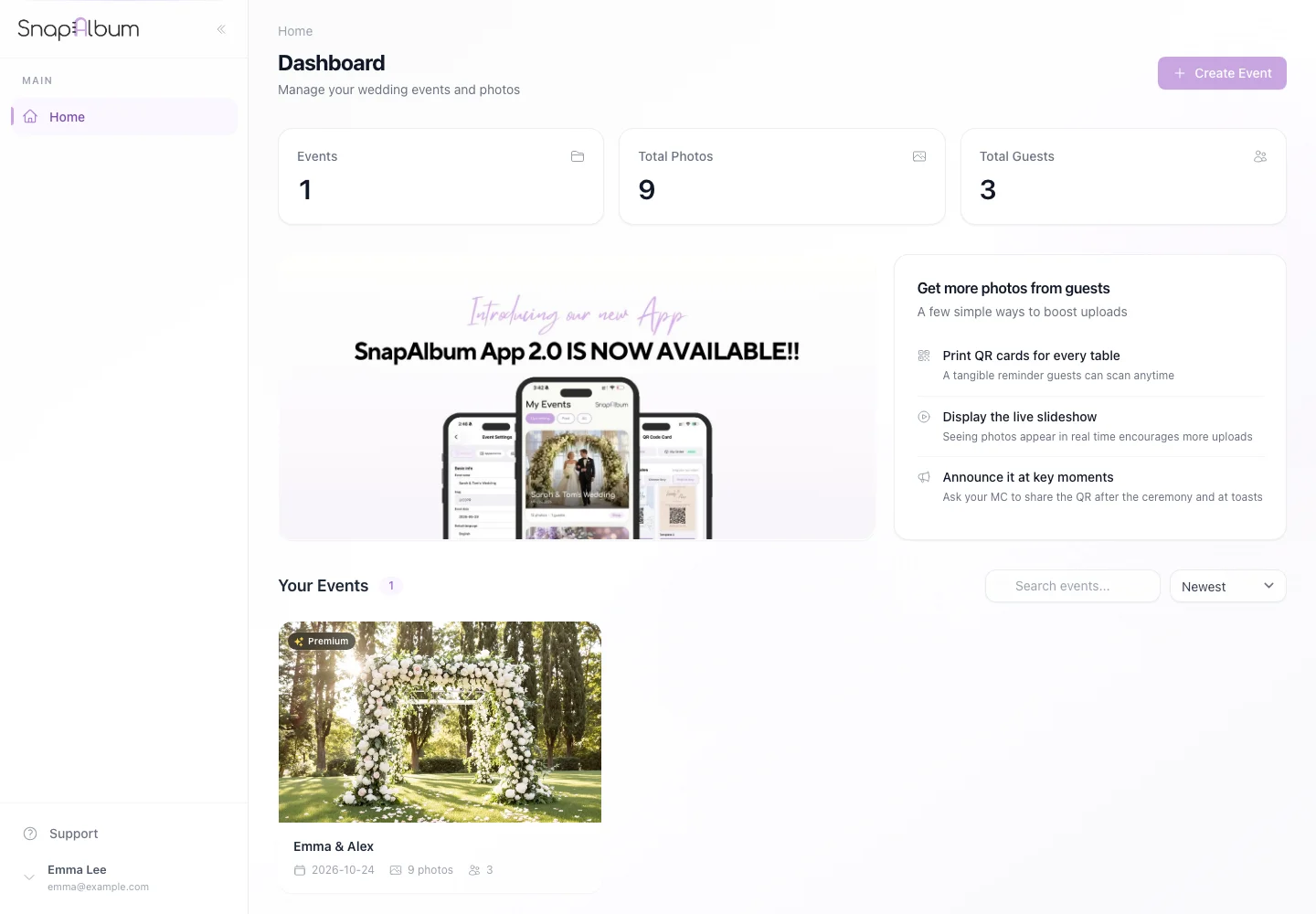
After payment, open your dashboard. Your purchased event is ready for setup; follow the activation prompt when you are ready to start.
When you are done
Your purchase is linked to your host account.
If something goes wrong
If payment is still being checked, wait for the status to update. Sign in with the purchase email before trying again.
Available features, photo storage periods and printed QR cards depend on your plan and region.