
Find your way around the dashboard
Locate event tools, photos and account pages.
Before you start
Sign in to your host account.
Steps
Screenshots show the SnapAlbum web app with fictional demo data. Prices and dates are examples.
Choose your event on the dashboard. Each event has its own photos, settings and guest link.
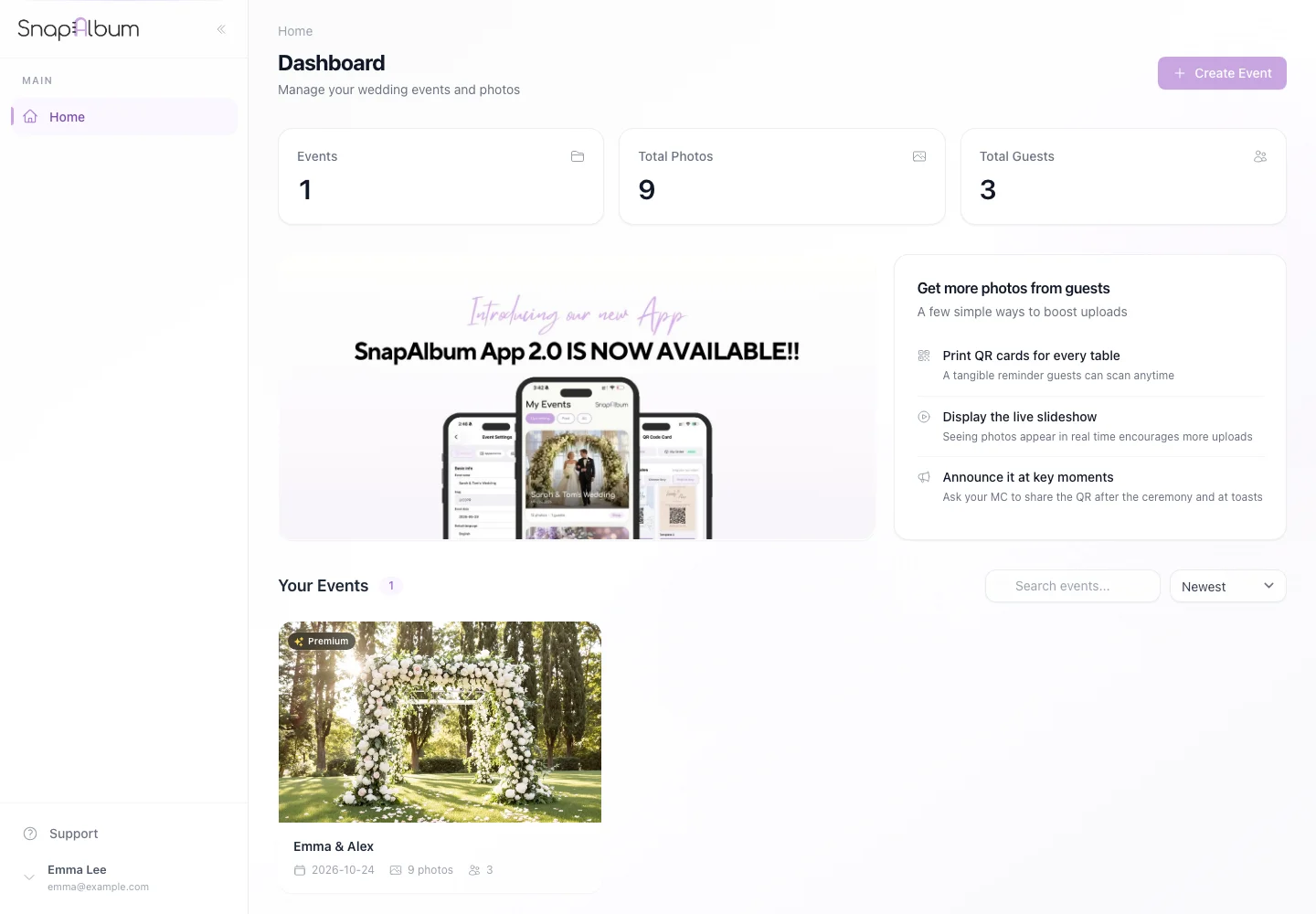
Choose your event on the dashboard. Each event has its own photos, settings and guest link. Open the event overview to see its QR code, guest link and activity.
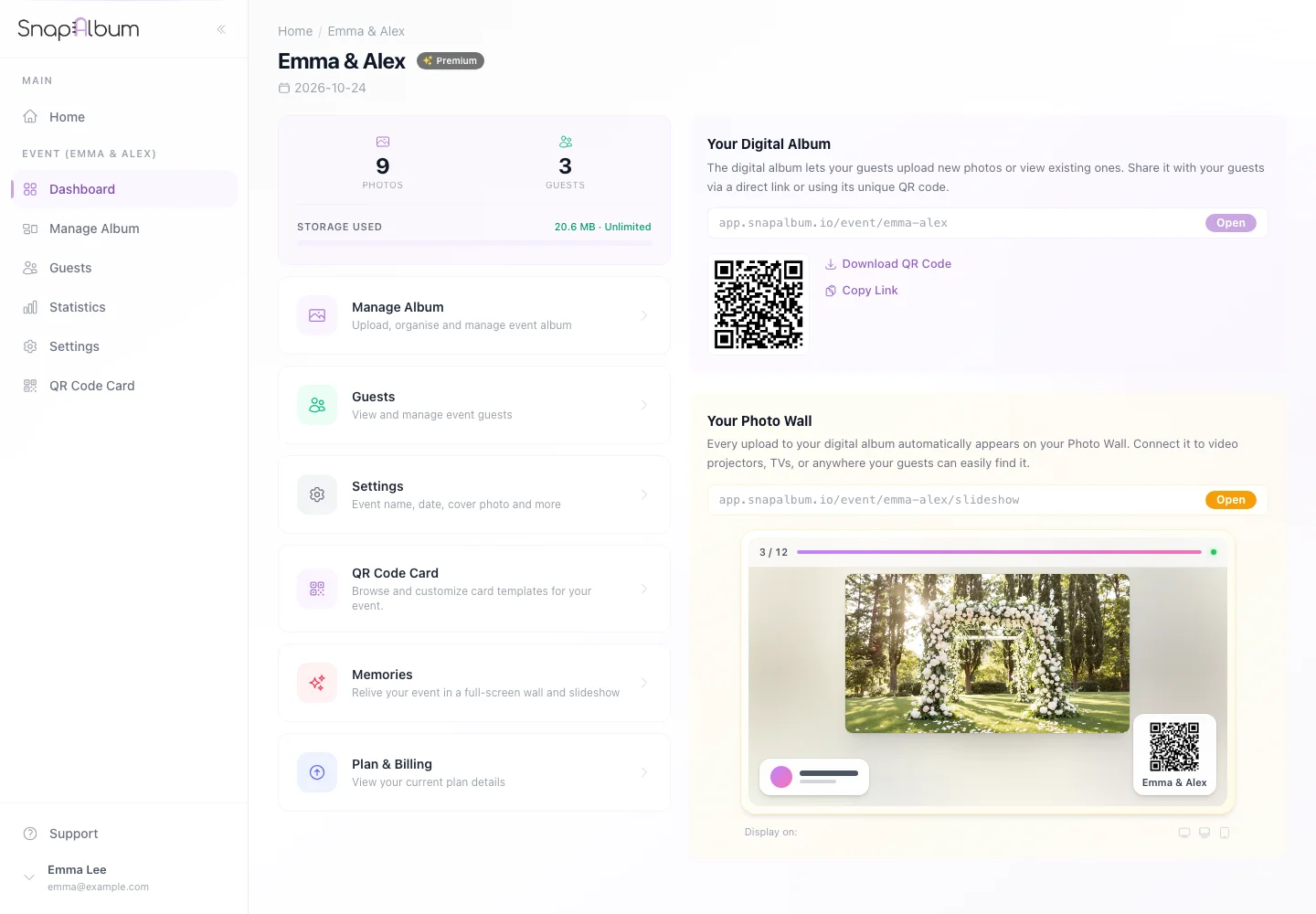
Open the event overview to see its QR code, guest link and activity. Use the sidebar to reach photo management, guests, statistics and settings. Account and billing pages apply to your account.
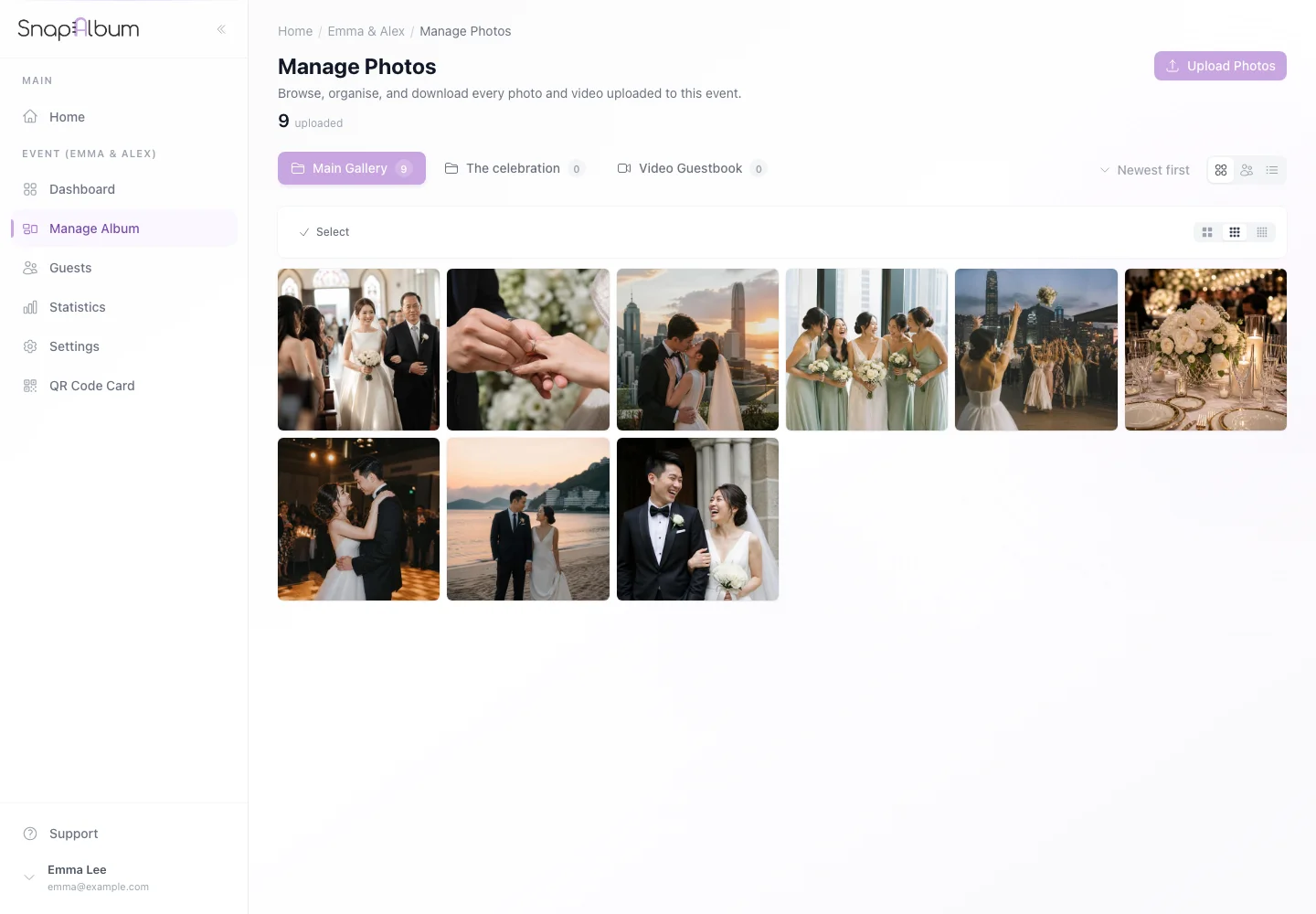
Use the sidebar to reach photo management, guests, statistics and settings. Account and billing pages apply to your account.
When you are done
You know where to manage the event and your account.
If something goes wrong
If an event is missing, check that you signed in with the email used to purchase it.
Available features, photo storage periods and printed QR cards depend on your plan and region.