
Set up and activate your event
Prepare your event before inviting your guests.
Before you start
A purchased event can wait for activation until the deadline shown in your account.
Steps
Screenshots show the SnapAlbum web app with fictional demo data. Prices and dates are examples.
Open the purchased event from your dashboard and review its details.
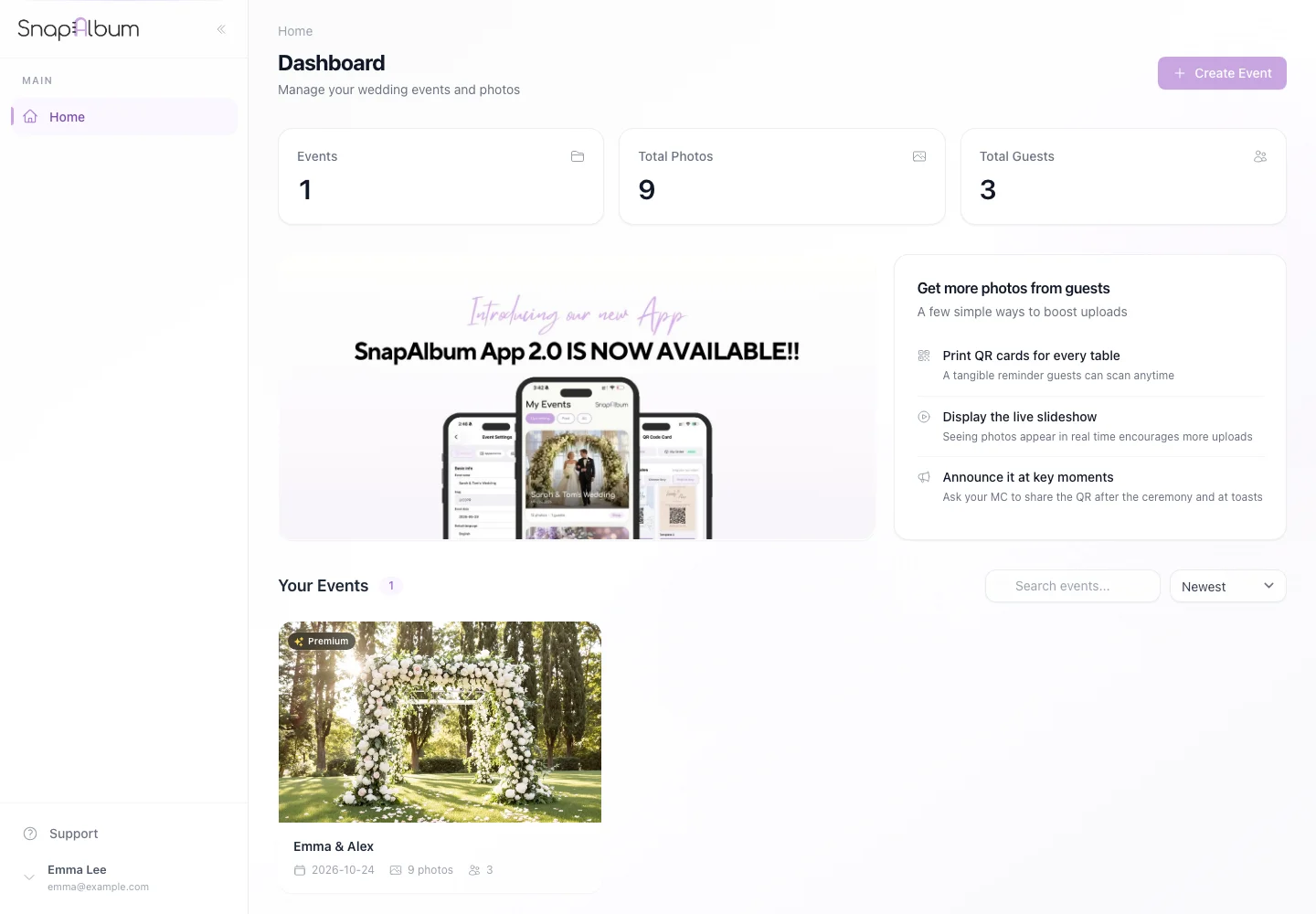
Open the purchased event from your dashboard and review its details. Set the event name, date and welcome screen before sharing. Read the activation notice, including the upload and storage dates.
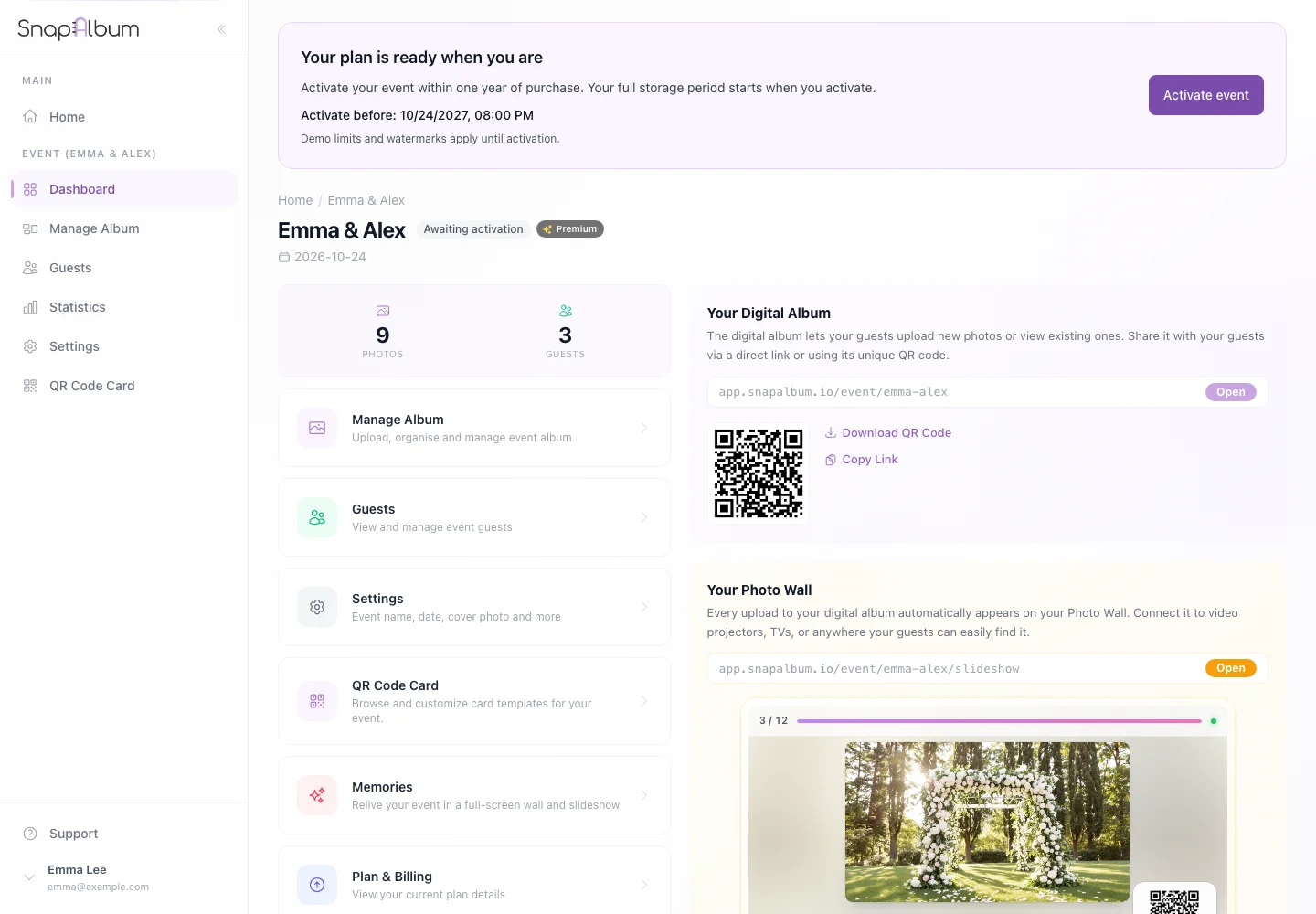
Set the event name, date and welcome screen before sharing. Read the activation notice, including the upload and storage dates. Use the activation control when you are ready. Check that the event is active before sending your guest link.
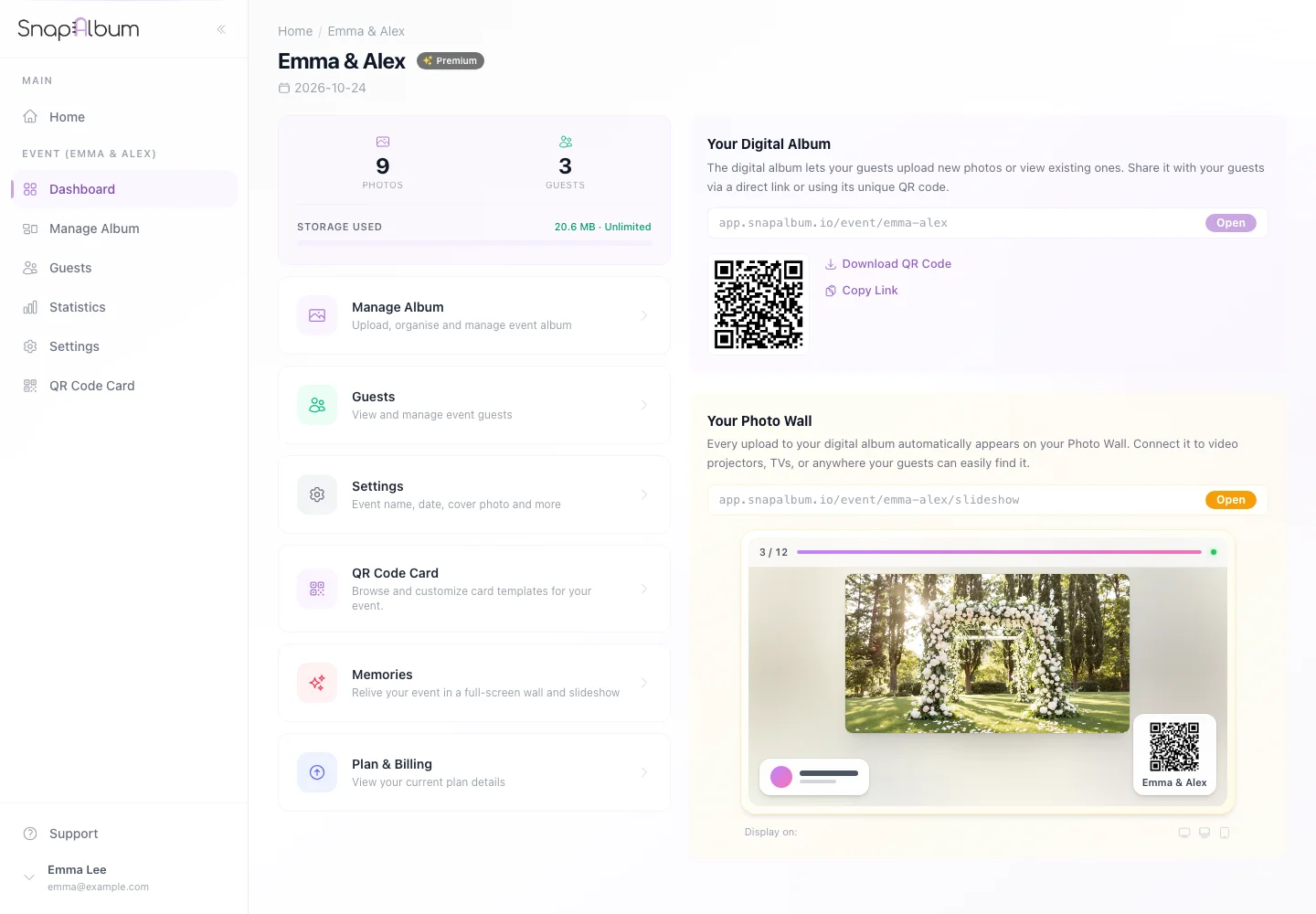
Use the activation control when you are ready. Check that the event is active before sending your guest link.
When you are done
Guests can use the active event according to your settings and plan.
If something goes wrong
If activation is unavailable, check the event status and deadline, then contact support with the purchase details.
Available features, photo storage periods and printed QR cards depend on your plan and region.