
Sign in or reset your password
Return to your account or request a password reset.
Before you start
Use the email address associated with your purchase.
Steps
Screenshots show the SnapAlbum web app with fictional demo data. Prices and dates are examples.
Open the login page and enter your email and password.
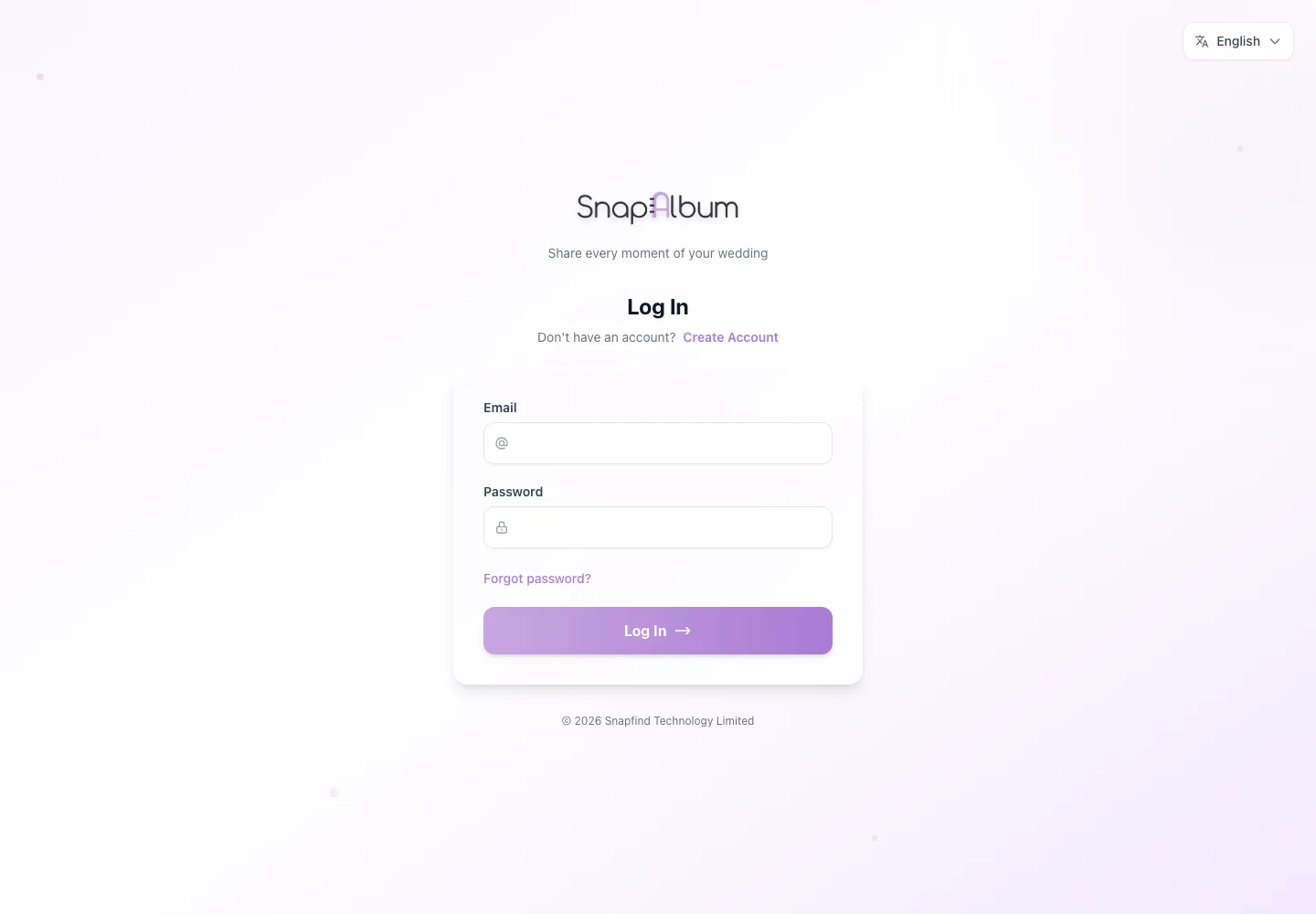
Open the login page and enter your email and password. If you cannot remember the password, choose Forgot password and request a reset email.
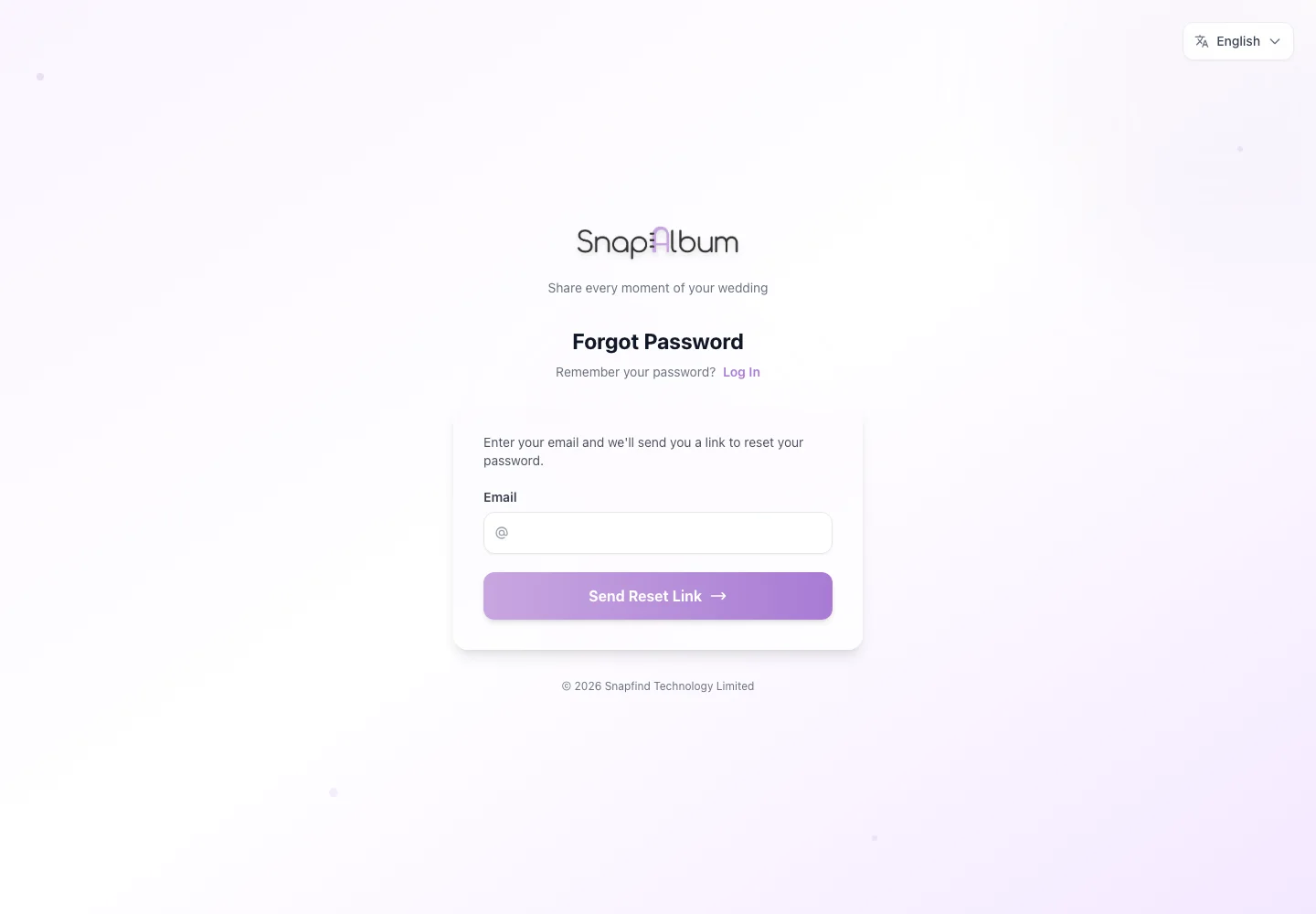
If you cannot remember the password, choose Forgot password and request a reset email. Open the reset link from your inbox, choose a new password and return to sign in.
Open the reset link from your inbox, choose a new password and return to sign in.
When you are done
You can access your dashboard again.
If something goes wrong
Check junk mail and confirm the email spelling. Request a new reset link if the old one has expired.
Available features, photo storage periods and printed QR cards depend on your plan and region.