
Update your profile, password and language
Manage your host account preferences.
Before you start
Sign in before opening your profile.
Steps
Screenshots show the SnapAlbum web app with fictional demo data. Prices and dates are examples.
Open Profile from the account navigation.
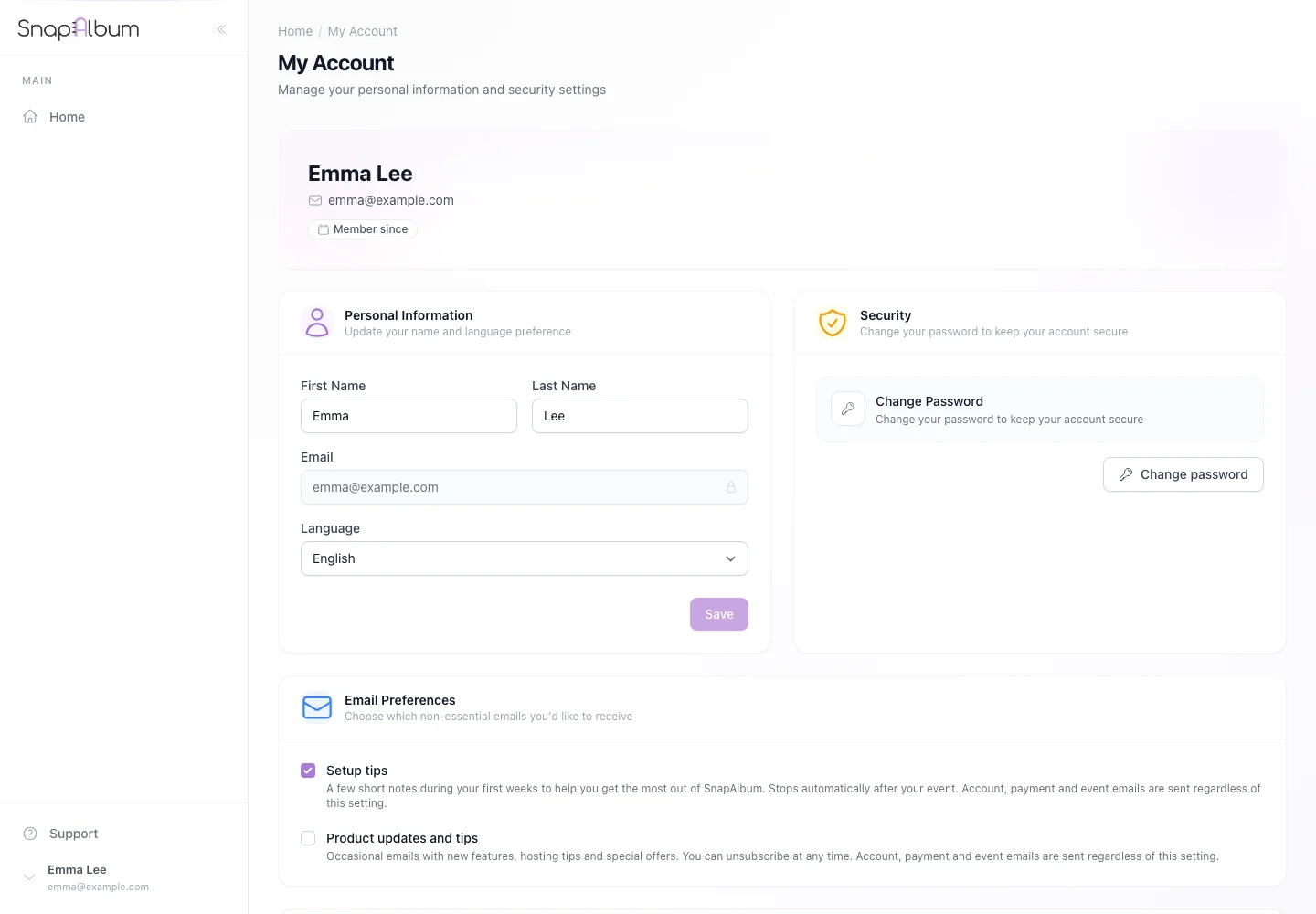
Open Profile from the account navigation. Update your personal details or preferred language and save the relevant section.
Update your personal details or preferred language and save the relevant section. To change your password, complete the password section. Keep the new password ready in case you need to sign in again.
To change your password, complete the password section. Keep the new password ready in case you need to sign in again.
When you are done
Your saved account preferences are updated.
If something goes wrong
If a change fails, check the field messages. Use the password reset page if you no longer know the current password.
Available features, photo storage periods and printed QR cards depend on your plan and region.