
Personalise the welcome screen
Set a welcoming first impression for your guests.
Before you start
Available customisation depends on your event plan.
Steps
Screenshots show the SnapAlbum web app with fictional demo data. Prices and dates are examples.
Open Settings and choose Appearance.
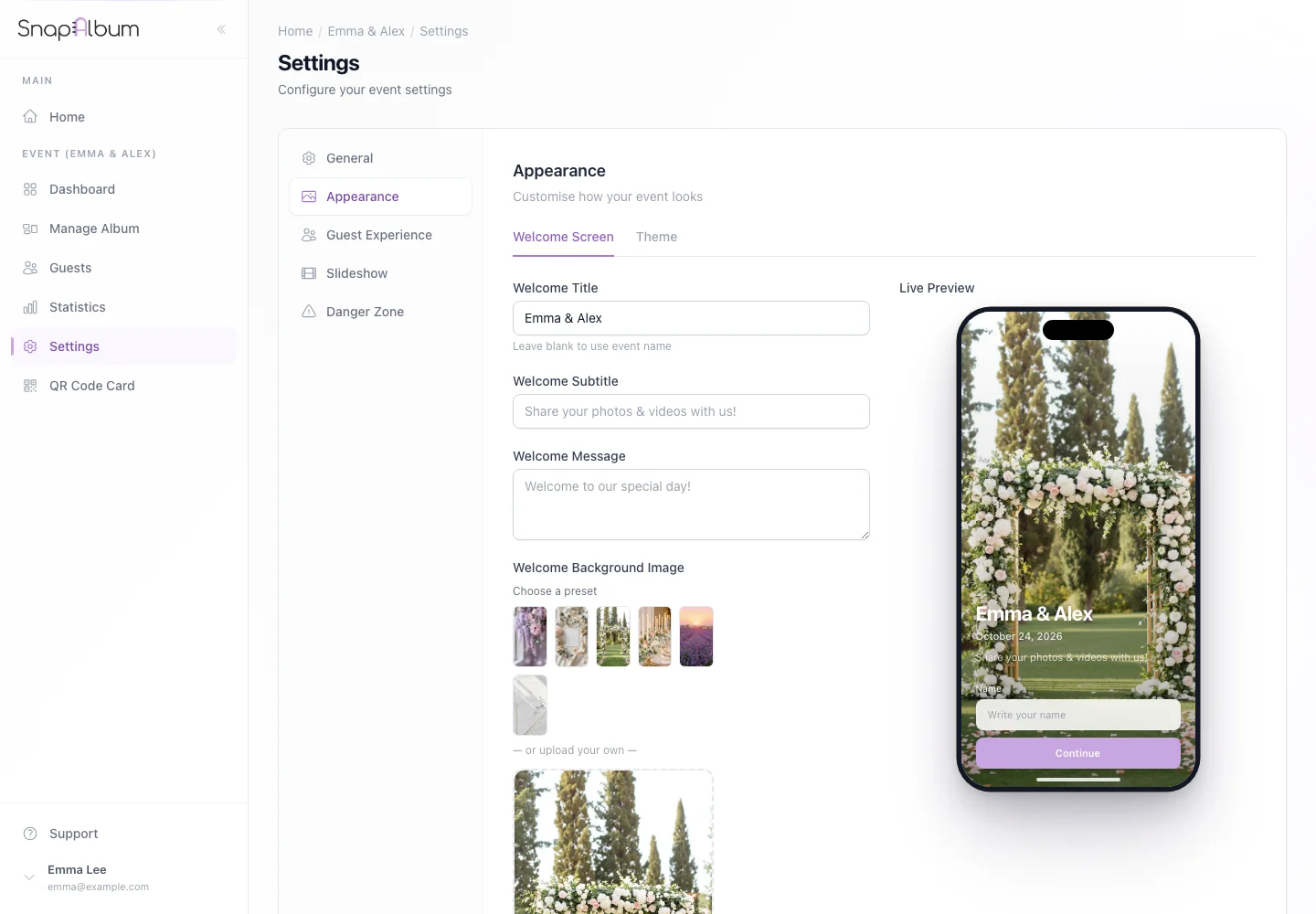
Open Settings and choose Appearance. Edit the welcome text and choose a background. Use the available theme controls to match your celebration.
Edit the welcome text and choose a background. Use the available theme controls to match your celebration. Save each changed section and preview the guest welcome page on a phone.
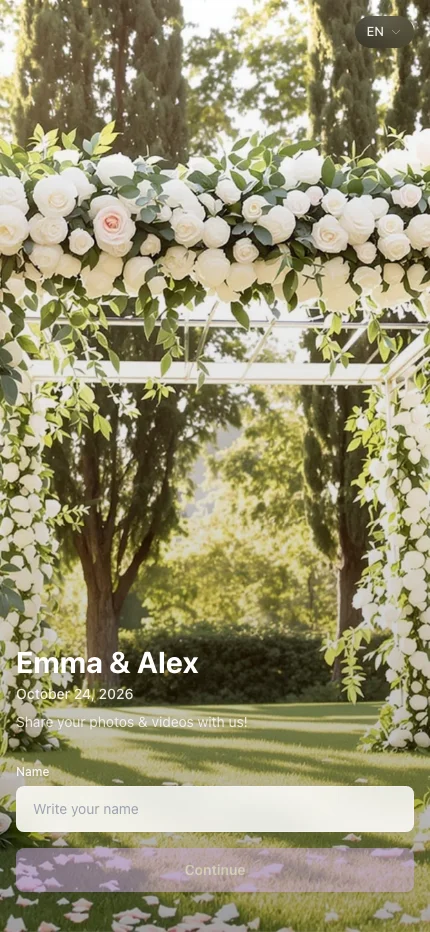
Save each changed section and preview the guest welcome page on a phone.
When you are done
Guests see your event’s welcome screen.
If something goes wrong
A locked control means the feature is unavailable on the current plan. Keep important text readable over your background.
Available features, photo storage periods and printed QR cards depend on your plan and region.