
Set up the live slideshow
Show guest photos on a screen during your celebration.
Before you start
Live slideshow must be included in your event plan. Connect the display computer to the internet.
Steps
Screenshots show the SnapAlbum web app with fictional demo data. Prices and dates are examples.
Open Settings and choose Slideshow. Enable the slideshow and set the interval and transition.
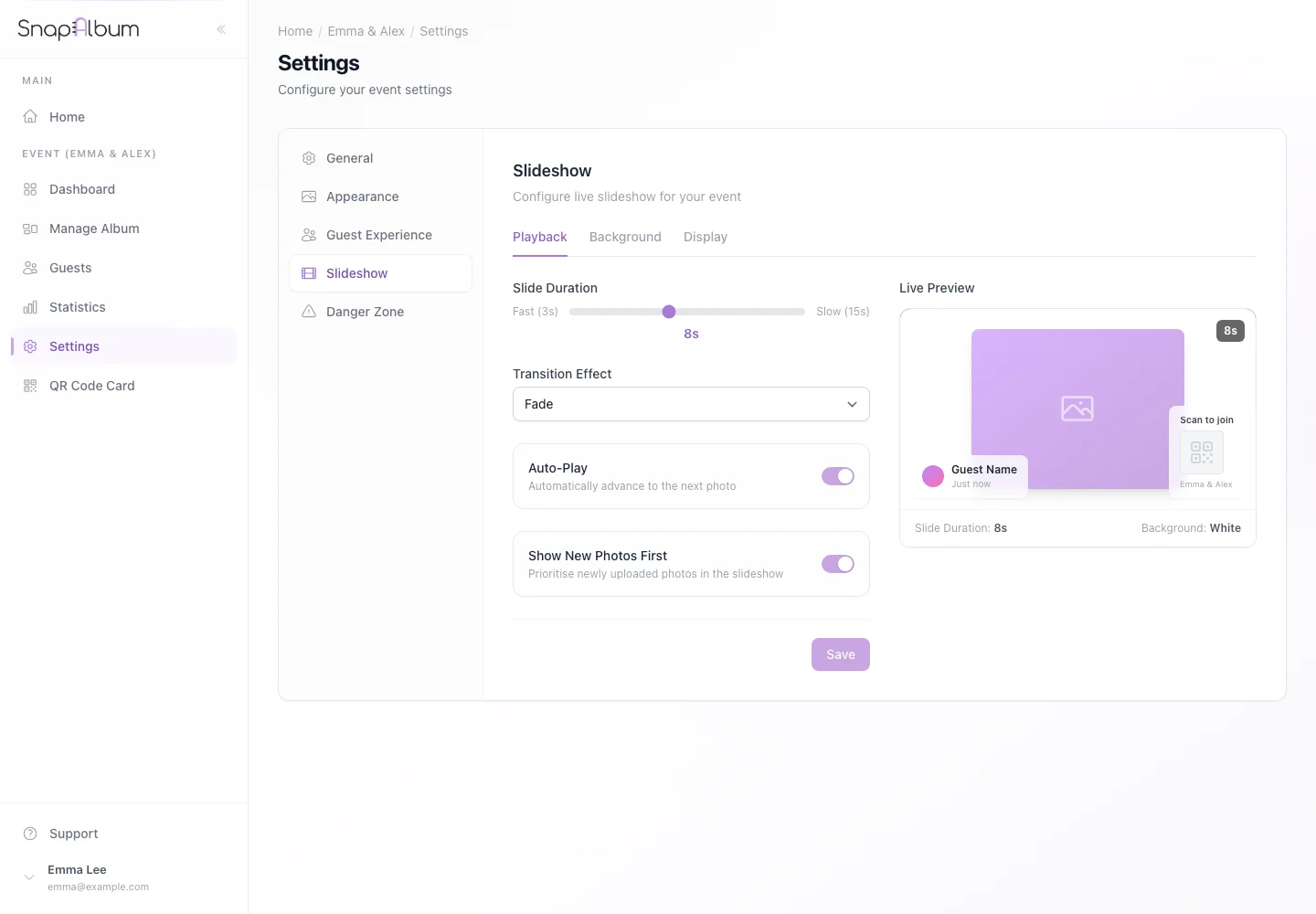
Open Settings and choose Slideshow. Enable the slideshow and set the interval and transition. Review the background and display options, then save your settings.
Review the background and display options, then save your settings. Open the slideshow link from the event overview on the display computer. Enter full screen and upload a test photo before guests arrive.
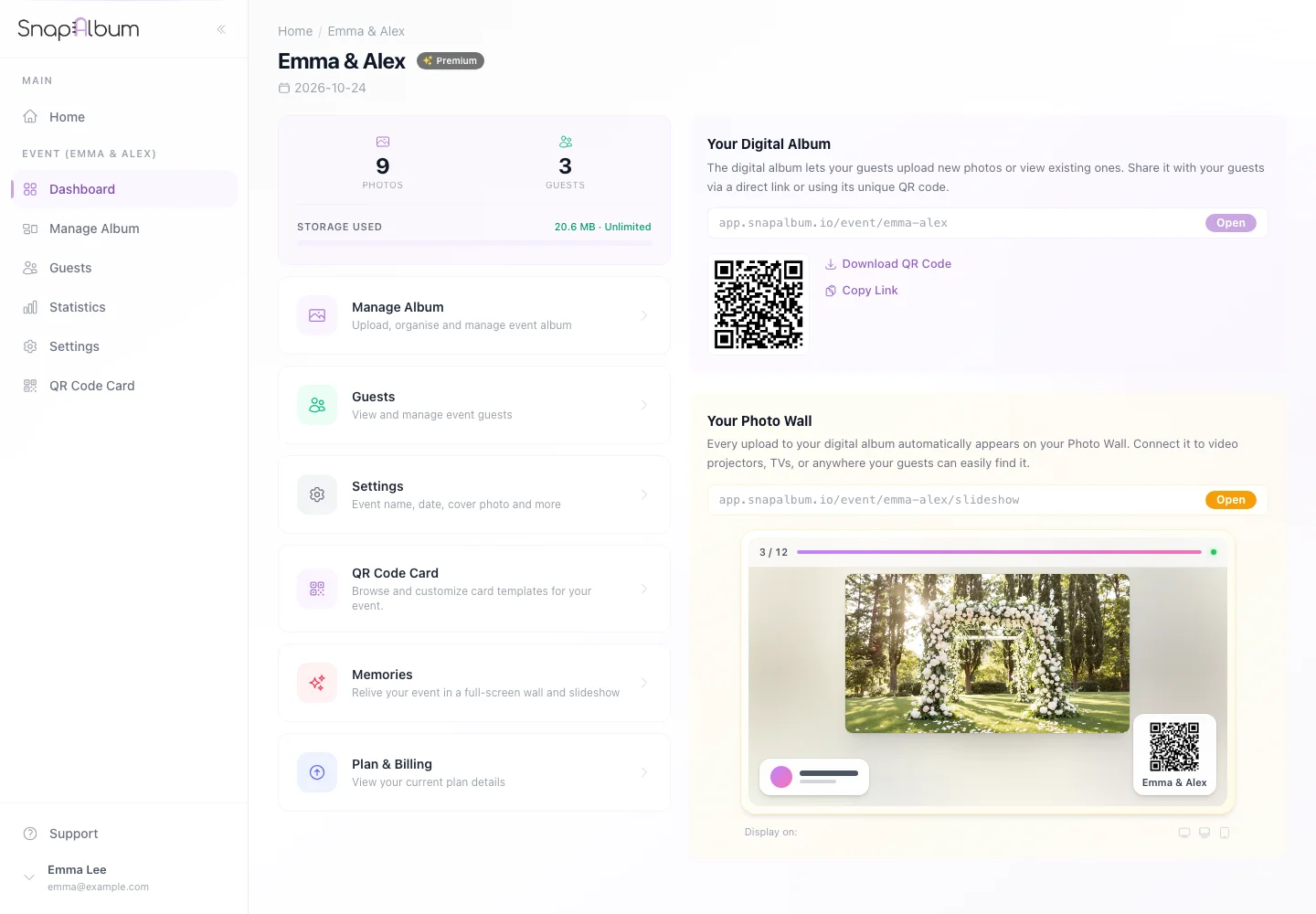
Open the slideshow link from the event overview on the display computer. Enter full screen and upload a test photo before guests arrive.
When you are done
The screen can show guest photos as they join the event.
If something goes wrong
If no photos appear, check that the slideshow is enabled, photos have finished processing and the display has a working connection.
Available features, photo storage periods and printed QR cards depend on your plan and region.