
Upload photos as a guest
Share your view of the celebration from your phone.
Before you start
You need the host’s guest link or QR code and a working connection.
Steps
Screenshots show the SnapAlbum web app with fictional demo data. Prices and dates are examples.
Scan the QR code or open the guest link. Enter your display name and continue.

Scan the QR code or open the guest link. Enter your display name and continue. Choose Upload from the event menu. Select the album if an album choice is shown.

Choose Upload from the event menu. Select the album if an album choice is shown. Choose photos from your phone and start the upload. Keep the page open until the upload finishes.
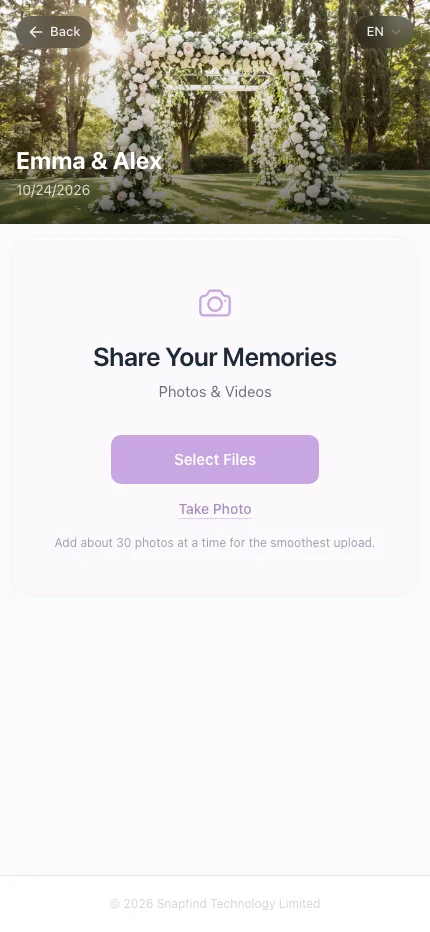
Choose photos from your phone and start the upload. Keep the page open until the upload finishes.
When you are done
Your photos appear in the event after processing.
If something goes wrong
If uploading fails inside a messaging app, open the link in Safari or Chrome. Check your connection and retry only failed files.
Available features, photo storage periods and printed QR cards depend on your plan and region.