
Find or remove your own uploads
Review what you uploaded during this visit.
Before you start
Use the same browser and guest session you used to upload.
Steps
Screenshots show the SnapAlbum web app with fictional demo data. Prices and dates are examples.
Open the event menu and choose My uploads.
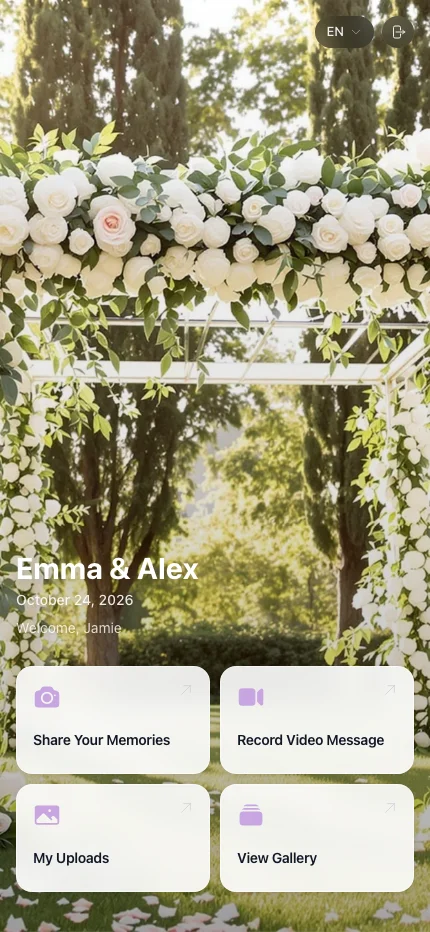
Open the event menu and choose My uploads. Review your photos and select the item you want to manage.
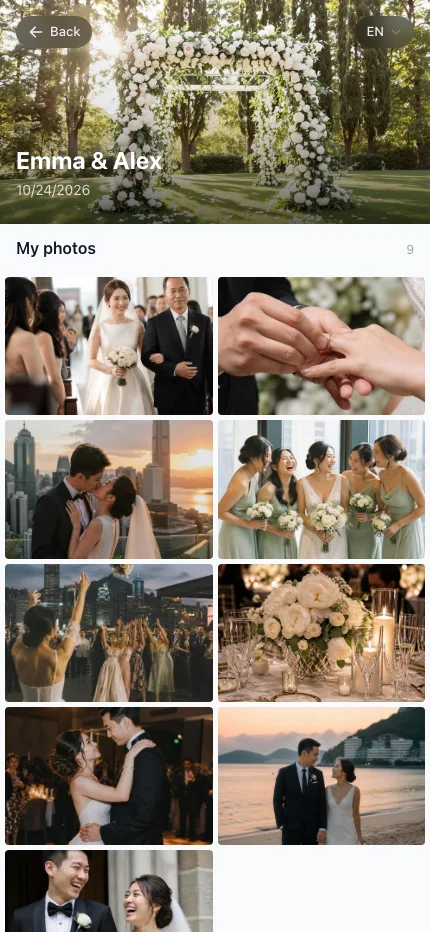
Review your photos and select the item you want to manage. Use the delete control only for an upload you want to remove, then confirm the action.
Use the delete control only for an upload you want to remove, then confirm the action.
When you are done
You have checked or removed your own uploads.
If something goes wrong
A different browser, a cleared session or a different guest name can show another upload history. Ask the host for help if needed.
Available features, photo storage periods and printed QR cards depend on your plan and region.